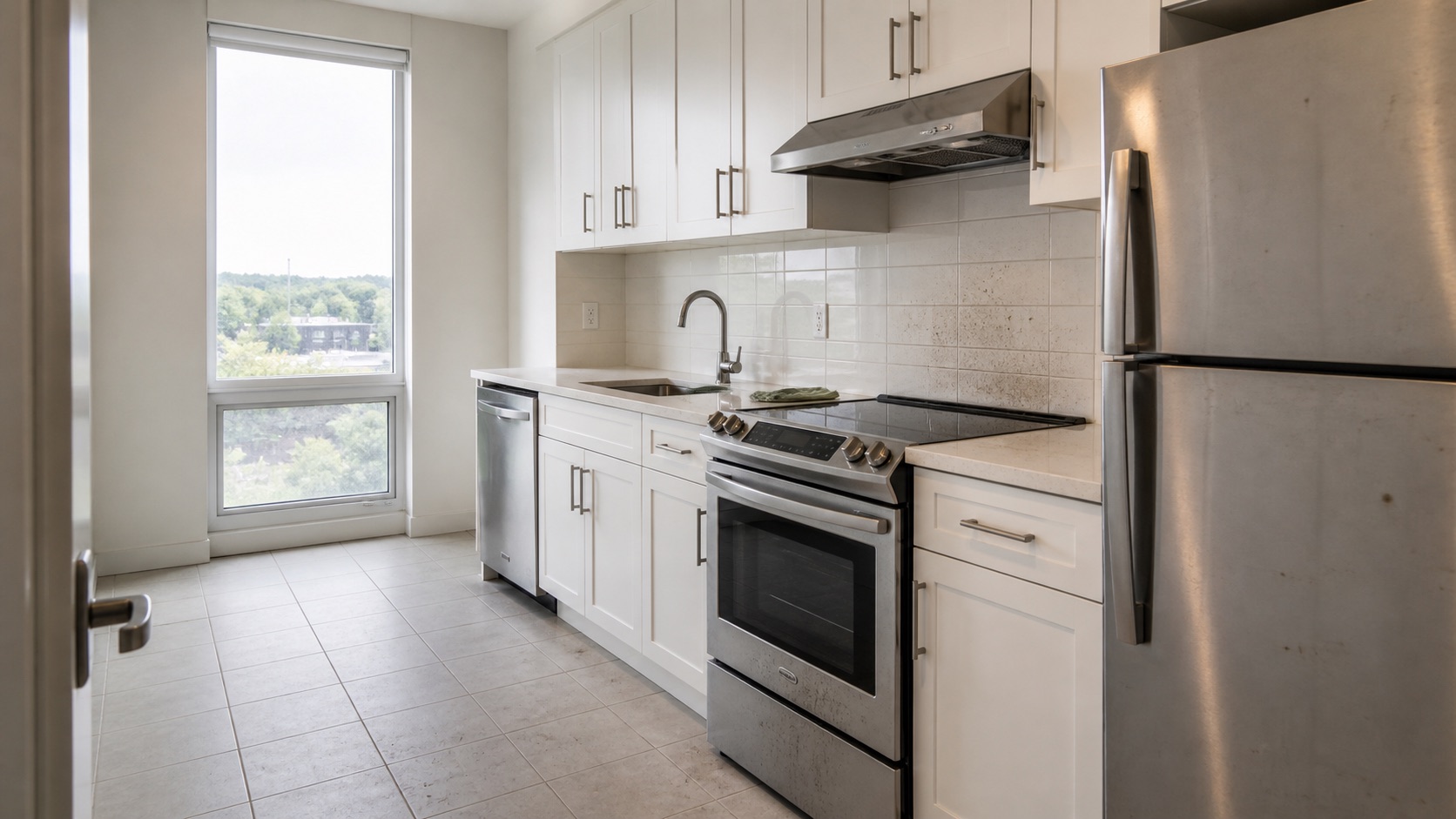
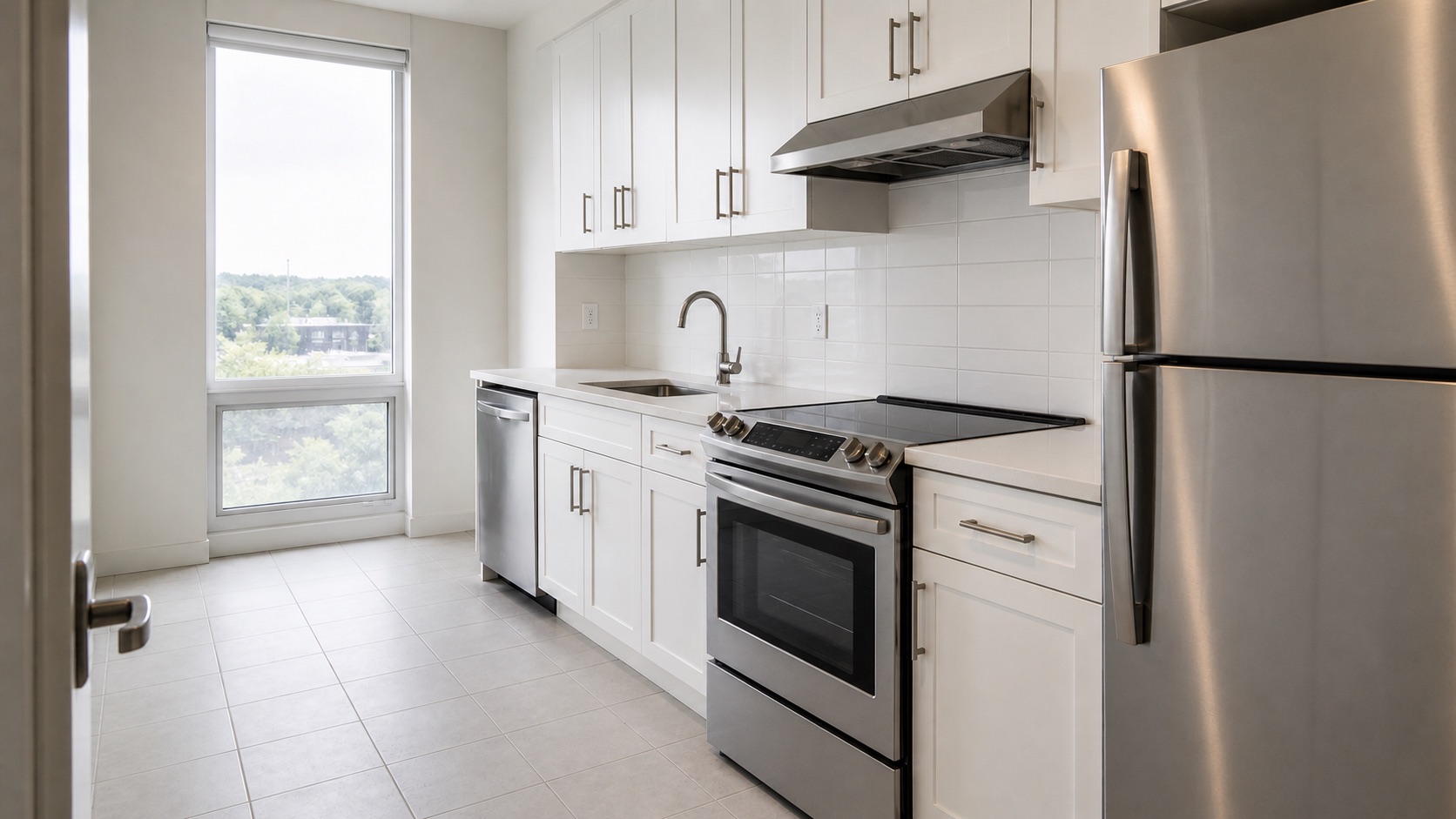
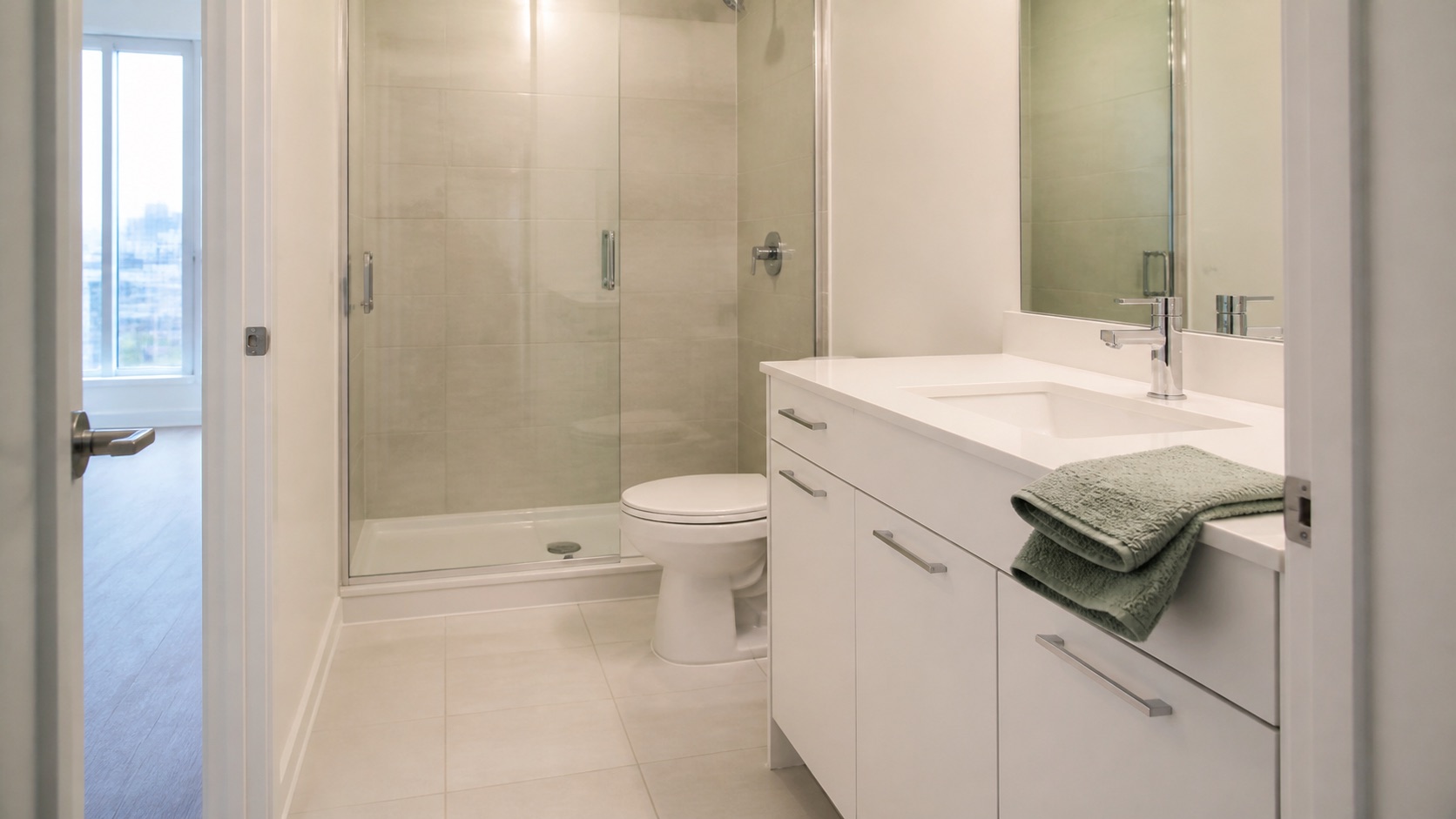
PHOTO REPORTING FOR SERVICE BUSINESSESJOB PHOTO REPORTS

The right report, without slowing down the job.The right report, without slowing down.

Finish a customer handoff with completed-work photos while you are still on site. When a job needs more context, add areas, notes, stages, and private follow-ups in the same project.Finish a customer handoff on site, or add detail when the job needs it.

Fast customer handoffDetailed records when neededYou approve every draft
FAST HANDOFF · 2 STEPS6 finished-work photos
JOB COMPLETION REPORT
PROJECT 024

Move-out cleaning, documented clearly.

Living room carpet · Move-out clean

BEFORE
COMPLETED
PDFCustomer PDF readyFast path · Add detail any time

CHOOSE THE FLOW THAT FITS THE JOB

Move quickly on site. Go deeper when it matters.

Start with the outcome you need. Photo2Report keeps the fast path focused, while the detailed path gives your team room to document the full story.

01FAST CUSTOMER HANDOFFOn-site ready

Finished work to customer PDF.

Name the job, add completed-work photos, and preview a clear customer report before you leave.

  1. 1 Name the handoff
  2. 2 Add finished-work photos
  3. 3 Preview customer report
For in-person handoffs and same-day follow-up
02DETAILED JOB RECORDMore context

A fuller record for work that needs follow-through.

Add areas, stages, notes, and visibility choices for progress, issue, internal, and comprehensive customer reports.

  • Areas and photo stages
  • Private notes and follow-up context
  • Reviewed drafts for the right audience
For progress, issues, teams, and fuller documentation

DETAILS WHEN THEY MATTER

More context, kept simple and reviewable.

Add the right context only when it helps: organize by area, separate visibility, and review every customer-facing draft.

Walk through the complete workflow
01CAPTURE BY AREA

Keep related photos together.

Select the part of the job once, then add Before and Completed photos as the work moves forward.

Living room carpetBefore work
Living room carpetCompleted work
Paired by the same area
02PHOTO SETTINGS

Give every photo a purpose.

Review the area, stage, caption, and audience choices before an external report includes the photo.

COMPLETED
StageCompleted
AreaLiving room carpet
Customer visibleCan appear in a client report
03REVIEW THE DRAFT

Approve the words before the file.

AI helps write the first draft, while you remain in control of every customer-facing statement.

AI-ASSISTED DRAFT Ready to review
Edit draftApprove & preview →

WHO IT’S FOR

Built for work that needs visible proof.

If your team cleans, fixes, inspects, improves, or documents a physical space, Photo2Report turns the camera roll into a clear client or internal record.

And many moreLandscaping, restoration, installations, inspections, and any work that benefits from photo proof.

02
A property service professional inspecting a residential entryway

Property services

Inspections, maintenance & tenant records.

Area-by-area records
04
A renovation professional checking the fit of a kitchen cabinet drawer

Renovation

Progress, milestones & final handoff.

Progress & completion reports
06
A field technician documenting exterior equipment on site

Field teams

Site visits, conditions & team records.

Consistent job documentation

LESS ADMIN. CLEARER PROOF.

Your camera roll records the work. It does not explain it.

Before

Photos scattered across a phone

Areas, stages, customer photos, and private records become mixed together after a busy day.

With Photo2Report

One project with a purpose

Each photo has an area and stage, so the right evidence appears in the right output.

ONE PHOTO SET. FOUR USEFUL OUTPUTS.

Finish the paperwork while the job is still fresh.

Use the same organized project photos for a customer, your next post, your internal file, or a complete handoff archive.

01Customer-ready PDF

Completion reports

A polished customer PDF with project details, completed work, visible results, and photo evidence.

02Area-by-area comparison

Before & after reports

Pair the same areas so customers can see the change without searching through a camera roll.

03PDF + social copy

Marketing content

Turn approved project photos into a branded report and copy-ready social post without exposing private notes.

04PDF + ZIP archive

Internal records

Keep progress, issues, follow-ups, private notes, and an organized photo archive in one project.

A SIMPLE FIELD-TO-FILE WORKFLOW

Three steps from camera to finished report.

No blank document, manual photo naming, or layout work required.

STEP 01Photos organized

Capture by area

Choose an area once, then add Before, Completed, Progress, or Issue photos as the work happens.

STEP 02Ready to use

Review the evidence

Check each photo’s area, stage, caption, customer visibility, and marketing permission before creating anything.

STEP 03Report delivered

Create and download

Choose the output, review the AI-assisted text, then create the PDF or archive when it is ready.

AI ASSISTS. YOU DECIDE.

A useful first draft, not an automatic claim.

Photo2Report uses the photos and notes you provide to draft report content. It does not replace your review, invent inspections, or publish anything automatically.

  • Customer visibility and marketing approval are separate choices; internal reports can include private project content.
  • Before photos remain private unless you include them.
  • Edit the draft before creating the final file.
SMART REPORT DRAFTReady to review
EXECUTIVE SUMMARY

Move-out cleaning was completed across three documented areas…

SCOPE & LIMITATIONS

This report is limited to the conditions shown in the supplied photos and project notes.

Edit draftApprove & preview →

SIMPLE PRICING

Try the complete workflow before paying.

Create a secure account and test one complete project. Upgrade only when the workflow is useful for your business.

FREE
$0to test

Use one real project to decide whether the workflow saves time.

  • 1 complete trial project
  • Up to 10 photos
  • 1 PDF or ZIP output
  • AI-assisted draft review
Create free account

Secure monthly billing through Stripe. Cancel from your billing portal at any time; access continues through the current period.

COMMON QUESTIONS

Know what the product does before you start.

Do I need a Before photo?

No. Before photos are optional for completion, progress, internal, and archive outputs. A Before & After Report needs at least one usable pair.

Does AI decide what happened?

No. It drafts from the photos, captions, areas, and notes you provide. You review and edit the content before download.

Can I use different areas in one project?

Yes. Add as many areas as the job needs and edit the area of each uploaded photo individually.

Can I download an old report again?

Yes. Generated PDFs and ZIP archives are saved in the project’s Generated files section for later download.

READY FOR A CLEARER HANDOFF?

Take the photos. Leave with the report.

Create free account Read the guide